
How to Create UGC Videos Faster with DesignUGC’s Video Script Generator
Creating a convincing UGC video takes more than placing a product in front of a camera. You need a suitable scene, a natural presentation style, clear product highlights, and dialogue that feels authentic. Planning all these details can take time, especially when you create ads for multiple products.
DesignUGC makes the process easier with its Video Script Generator. Select a Product and an Avatar, describe what you want to communicate, and let the AI build a ready-to-edit Ad Script. As an AI UGC Video Generator, DesignUGC turns product details and creative direction into a structured video plan that you can refine before generation.
1. Select Your Product and Avatar
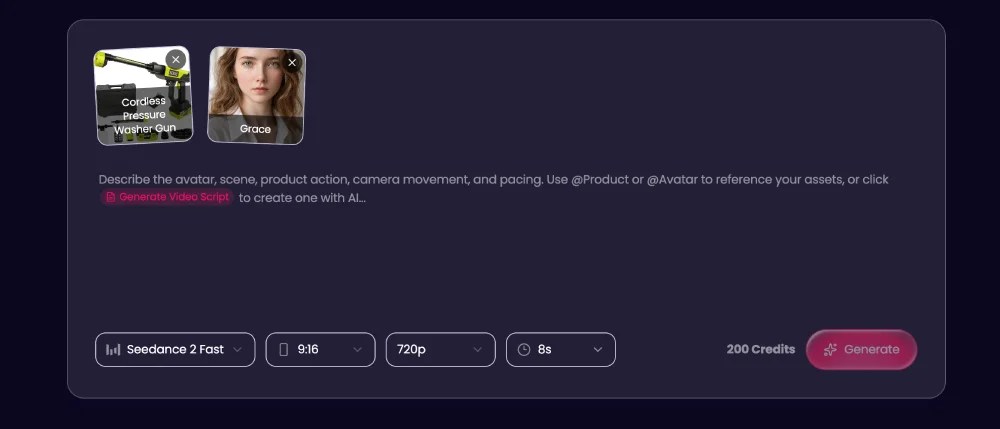
Start by opening the AI UGC Video Generator and selecting the Product and Avatar for your video. Your Product provides the visual and descriptive reference for the item being promoted, while your Avatar acts as the on-screen presenter.
This combination gives the generator the context it needs to plan product demonstrations, actions, framing, and dialogue. For example, a skincare product may suit a friendly personal review, while clothing may work better in a try-on video.
For help importing and preparing these assets, read our guide, How to Create UGC-Style Videos with DesignUGC. Once your Product and Avatar are in your library, the AI UGC Video Generator can use them as references for different video concepts.
2. Add Product Highlights and Video Requirements
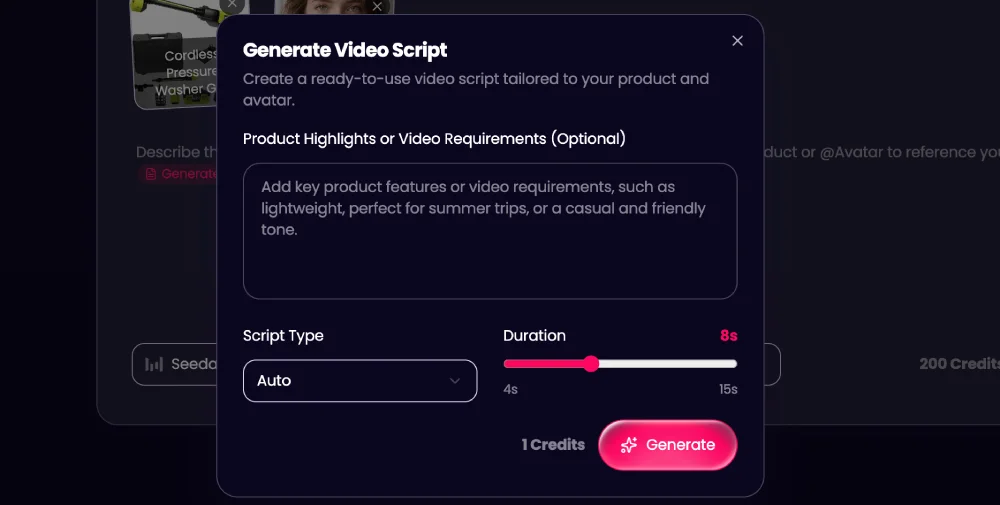
Open Video Script Generator and add direction in the product highlights and video requirements field. This helps the AI understand what matters most in your promotion and what kind of result you expect.
For product highlights, mention the features or benefits you want to communicate. These could include a lightweight design, long battery life, easy setup, portability, or a particular use case. A few clear points are enough. The AI can develop them into scenes and dialogue.
You can also describe creative requirements. Specify a bright kitchen, a relaxed bedroom, an outdoor setting, or another background that suits the product. Include details about the Avatar’s clothing, behavior, presentation style, or how the product should be demonstrated. For example, you could request a casual home setting with the Avatar wearing comfortable everyday clothes.
The generator uses your input alongside the selected Product and Avatar to build the visual setup and dialogue. It incorporates product highlights and follows special instructions when constructing the scenes. This makes the AI UGC Video Generator useful for planning both what the ad says and how it should look.
3. Choose a Script Type
Different products and campaign goals call for different presentation styles. DesignUGC supports several Script Types, allowing you to guide the structure of your Ad Script.
- Auto: Lets the AI choose a suitable style based on your Product and Avatar.
- Unboxing: Focuses on opening, revealing, and introducing the product.
- Selling Points: Highlights the product’s main features and benefits.
- Try-On: Shows how a wearable product looks or fits when used by the Avatar.
- Review: Presents a personal, experience-based opinion about the product.
- Tutorial: Explains how to use the product through clear steps.
- Lifestyle Ad: Places the product in a relevant everyday situation.
- Selfie Intro: Uses a casual, front-facing presentation to introduce the product.
Choose Auto when you are unsure which format will work best. The AI picks a fitting approach based on the product and Avatar context. When you have a specific creative direction, select the corresponding type to make the output more focused.
For example, a portable cleaning tool could use Tutorial to demonstrate how it works, while a fashion item may suit Try-On. A beauty product could use Review or Selfie Intro. These formats let the AI UGC Video Generator support different ad concepts without requiring you to write every script from scratch.
4. Set the Video Duration
Choose your desired video duration, from 4 to 30 seconds. This gives you flexibility for short social ads as well as more detailed product presentations.
The duration influences how the Ad Script is divided into scenes. A shorter video needs to communicate its message quickly, while a longer one has more room for an introduction, product demonstrations, and a closing message.
The generator generally organizes the script into three to five clips, depending on the duration and content. Each clip is planned around the selected Product and Avatar, with its own visual direction and dialogue. One clip might introduce the product, another show an important feature, and a final clip communicate a benefit or call to action.
This scene-based structure gives the video a clearer flow and makes the instructions easier to review. You can see how the story develops from one clip to the next rather than working with one long, unstructured prompt.
5. Review and Edit Your Ad Script
Generate your Ad Script once the settings are ready. The result includes planned scenes and corresponding dialogue, and you can review the complete script before generating the video.
The generated version is a starting point, not a fixed result. Check whether the product details are accurate, the Avatar’s actions feel natural, and the dialogue matches your preferred tone. You can refine a scene, adjust wording, add a product benefit, or make the visual instructions more specific.
For example, ask the Avatar to hold the product closer to the camera, demonstrate a particular feature, or wear a different outfit. You might also want a more realistic background or a more direct opening line. Updating these details before video generation helps the final result match your expectations.
This flexibility is an important part of the DesignUGC workflow. The AI UGC Video Generator handles much of the initial planning, while you remain in control of the final creative direction. You can fine-tune each scene and adjust the script until it matches your vision.
Create Your Next UGC Ad with DesignUGC
A strong UGC ad starts with a clear idea of what the product offers and how that message should be presented. DesignUGC’s Video Script Generator brings the main steps together: select a Product and Avatar, add product highlights and creative requirements, choose a Script Type, set the duration, and review the Ad Script.
By turning product information into scene-by-scene directions and dialogue, it reduces the time spent planning each video. You can still edit the script to refine the scenes, presentation, and message before generating the video.
Try the DesignUGC AI UGC Video Generator to create your next product ad script and shape it into a video concept that is ready for production.