
How to Create UGC-Style Videos with DesignUGC
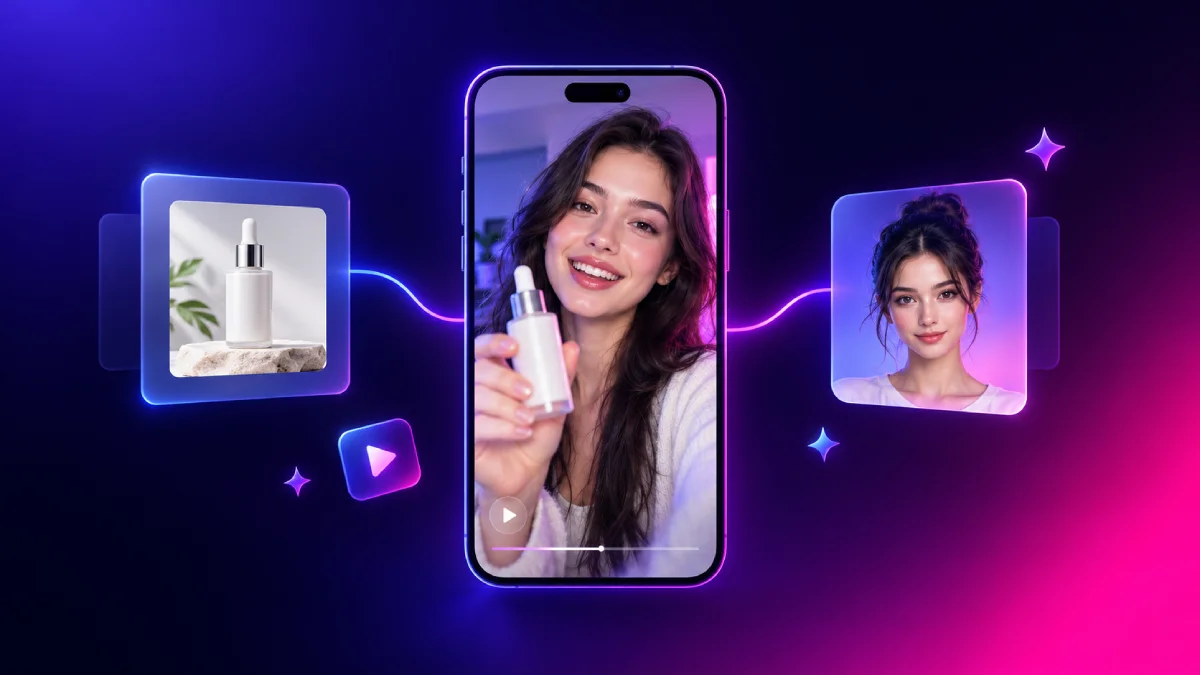
UGC-style video ads work because they feel like a real person talking about a real product. Producing them the traditional way means finding creators, shipping samples, and waiting on edits. DesignUGC replaces that loop with an AI UGC Video Generator that turns a product and an avatar into a short, creator-style video. This guide walks through the full workflow, from importing a product to comparing versions of the same ad.
Why Use an AI UGC Video Generator for UGC Ads
Creative fatigue is the main reason paid social campaigns stall. You need fresh hooks, new faces, and several versions of the same offer, and booking creators for each one gets slow and expensive. An AI UGC Video Generator lets you produce those variations in minutes, so you can test more ideas before committing budget. The result is a faster path from a product page to a finished UGC ad.
Step 1: Import Your Product with Product Creator
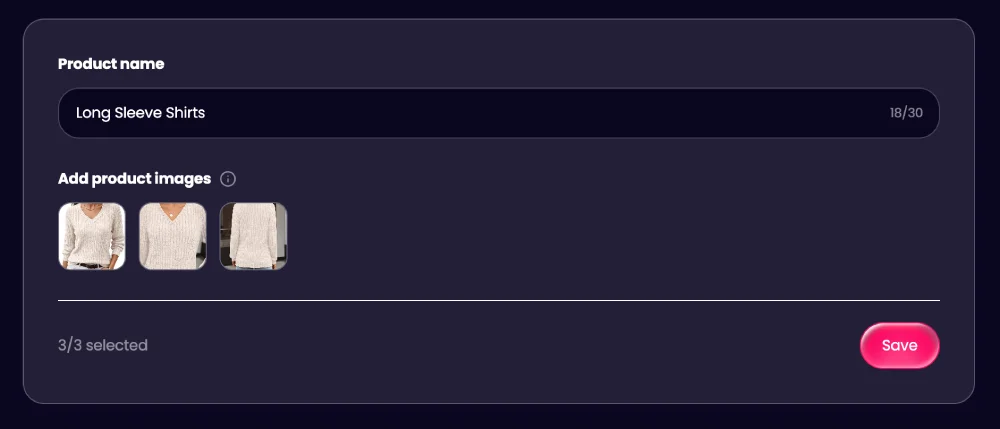
Everything starts with the product. Product Creator is where you save a product once and reuse it in every project. Each product holds a name and up to three images, and there are two ways to add one.
Option 1: Upload product images
Upload up to three photos from your device. Different angles and close-up details help the AI understand the shape, label, and packaging, so include a front view, a back view, and one detail shot. Clean images on a plain background work best, because clutter and banners can confuse the reference.
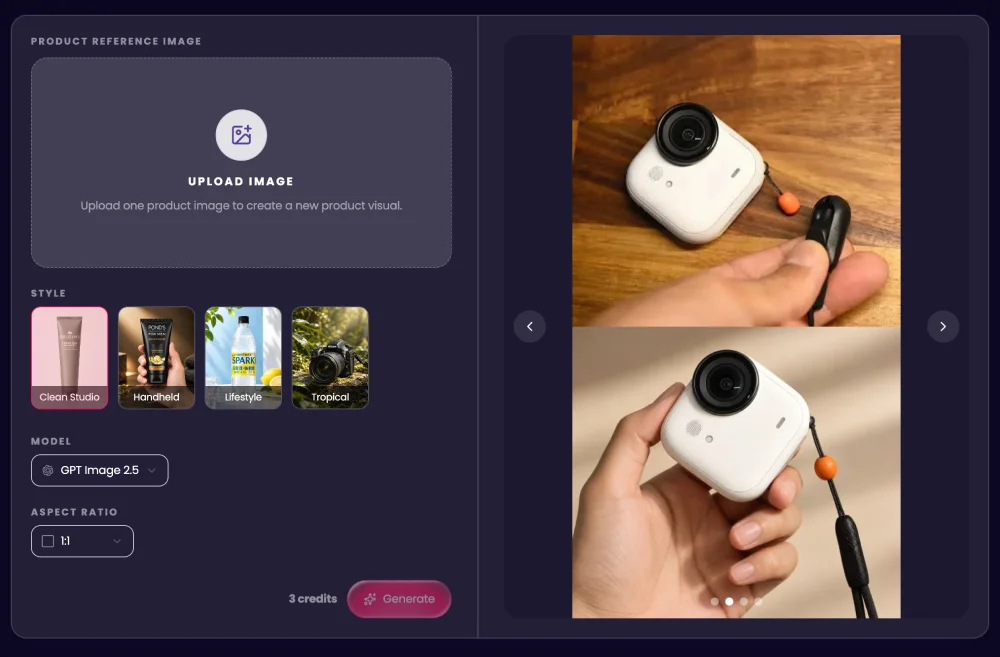
No clean photo yet? Create one with the AI Product Photography Generator. Upload a simple phone photo, pick a style such as Clean Studio, Handheld, Lifestyle, or Tropical, and add your own prompt for more control. It keeps your logo, shape, colors, and packaging text true to the original, runs on models like GPT Image 2.5 and Nano Banana Pro, and supports aspect ratios from 1:1 for stores to 9:16 for social content. Download the result and upload it to Product Creator.
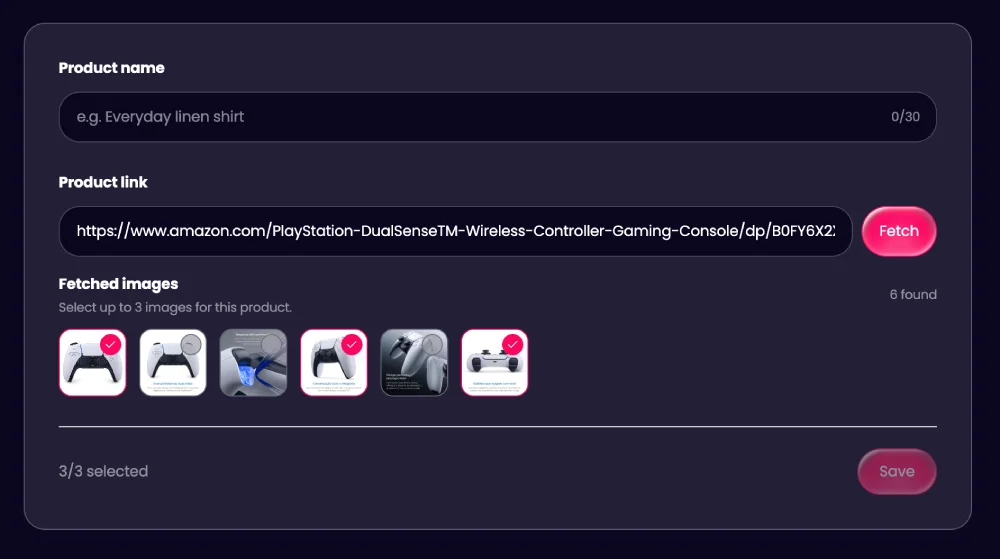
Option 2: Import from a product URL
Paste a link from TikTok Shop, Shopify, or Amazon and Product Creator pulls the listing images automatically. Keep the three that show your product best and remove the rest. Free accounts can fetch up to five products from links, so switch to uploading images when you reach that limit.
Step 2: Choose the Right Avatar
The avatar is the face of your ad. DesignUGC includes eight system avatars across different genders and styles, so you can pick one that matches your audience without any setup.
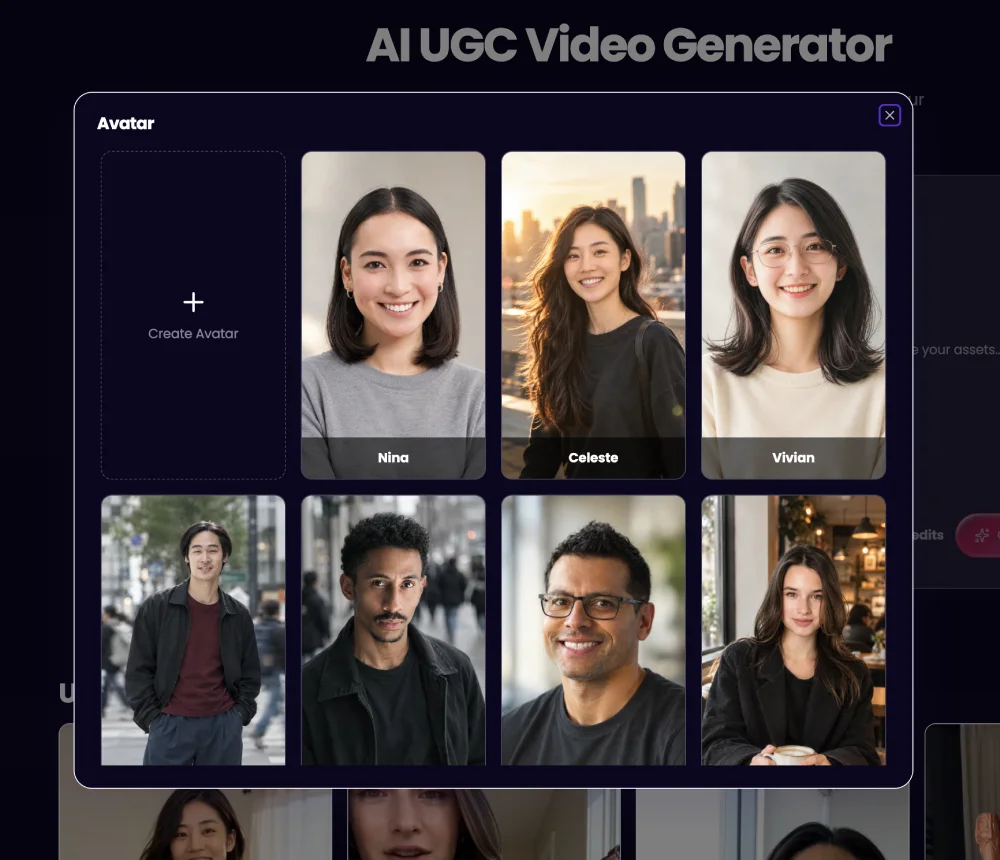
If none of them fits your brand, create your own with the AI Avatar Generator. It offers two ways to work: describe the person with a prompt alone, or upload a reference photo and let your prompt refine it. Focus the prompt on appearance, such as hair, clothing, expression, and pose, and skip the background. Preset templates like Editorial, In-Car, Outdoor, Street, Lifestyle, and Studio give you a quick starting look, or choose None to build everything from your prompt. Pick a model such as GPT Image 2.5 or Nano Banana Pro, generate, and save the result to your Library.
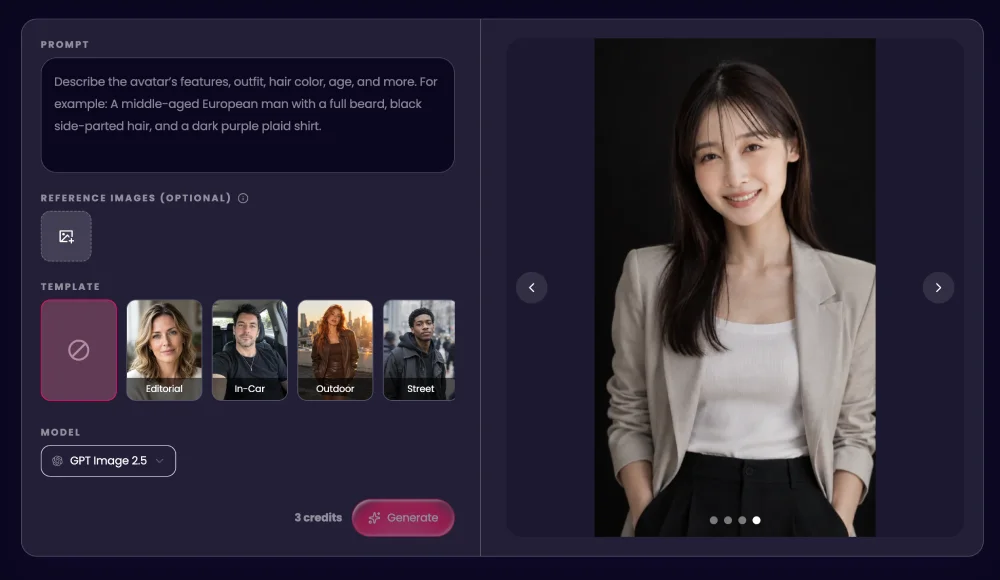
The real benefit is consistency. Generate an avatar once and reuse it across many ads, so every video in a campaign features the same creator.
Step 3: Generate Your UGC Video
Now bring both together in the AI UGC Video Generator. Select your saved product and avatar, then write a prompt covering the hook, scene, product action, dialogue, and camera direction. Type @Product or @Avatar to reference your assets directly in the prompt. If you need a starting point, browse the community UGC ads for inspiration and adapt their prompts.
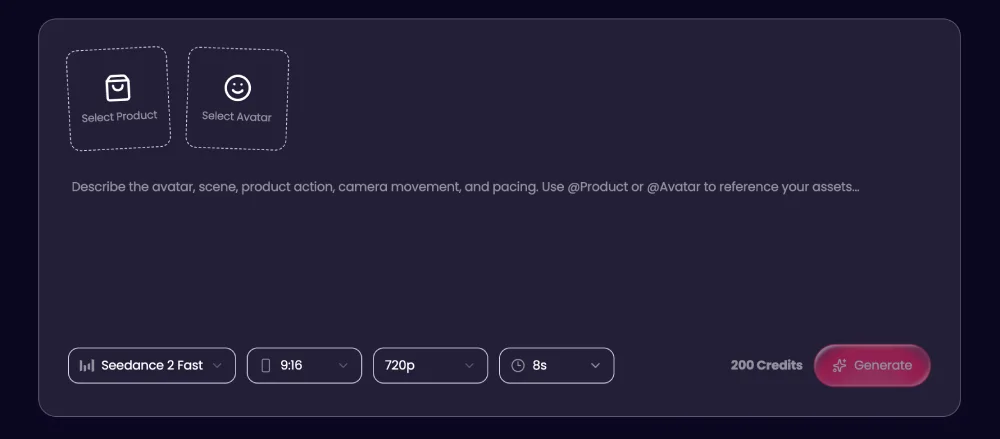
Then choose your generation settings:
- Model: Seedance 2, Seedance 2 Fast, Seedance 2 Mini, or Seedance 2.5.
- Aspect ratio: 9:16 for TikTok and Reels, or 16:9, 4:3, 1:1, 3:4, and 21:9 for other placements.
- Resolution: from 480p up to 1080p, with 4K on Seedance 2. Available options vary by model.
- Duration: up to 15 seconds, or up to 30 seconds with Seedance 2.5.
The defaults are 9:16, 720p, and 8 seconds, which suits most short-form placements. Generate, review the result, then refine the prompt or settings for another take. Video generation uses credits from a paid plan.
Step 4: Compare Multiple Rounds to Find a Winner
One video is a guess, while several are a test. Keep the product and prompt the same, switch the avatar, and generate a new version each time. A different gender, age, or style can change how an ad lands with your audience. Run the versions as UGC ads with a similar budget, then compare watch time, click-through rate, and conversions.
Because your products and avatars live in a library, each round takes minutes. Once an avatar wins, reuse it for your next product, or keep the avatar and test a new hook. A reliable AI UGC Video Generator makes this kind of repeated testing practical.
A few habits keep the comparison fair. Change only one variable per round, such as the avatar or the opening line. Name each video clearly so you can match results to versions later. Review every clip for product accuracy and advertising claims before you publish, and check the rules of each platform you run ads on.
Start Creating UGC Ads
The DesignUGC workflow comes down to four moves: import a product, choose or create an avatar, generate the video, and compare versions. New accounts receive free credits to try creating products and avatars. When you are ready to make your first video, open the AI UGC Video Generator and turn your product into a UGC ad today. Whether you sell skincare, apparel, or home goods, the same AI UGC Video Generator workflow helps you launch, test, and scale short-form video ads without filming a single shot.